

Welcome to my complete guide to POTA
What is POTA?
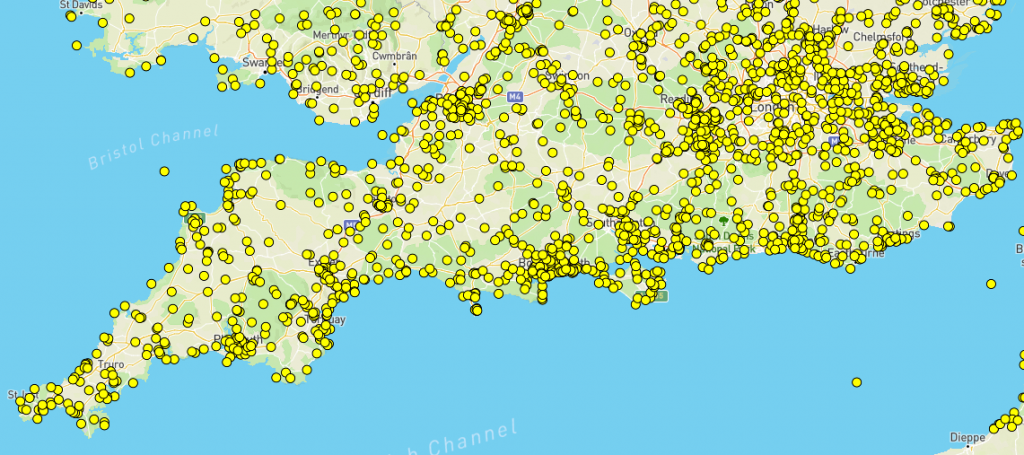
There are sites around the world that are given POTA reference codes. These sites are often National Parks, landmarks of interest, National Gardens etc You can find a complete list of sites on the POTA Map. The image below shows just how many sites are located in the South of England.
First of all, head on over to the POTA website and make an account. Setup your profile to your liking.
You are going to choose a logging program (or a Paper and Pen) to log your contacts. I prefer to use HAM2K POLO which can be found in your Appstore, if you are using a phone or Tablet device. You can also choose to use your favourite logger program if that supports the POTA events. If your log system does not support POTA, you can use the Special Interest Group (SIG) field to do the same. All you need to do is put the Park Reference Number in that field.
Loggers of choice are: SMGO Qlog CqrLog World_Radio_League There are thousands of loggers that support events such as POTA and 145Alive (UK) The hardest choice is picking one!
Ok, so you have chosen a logger suitable for your needs. Just for your information, i use a modified Amazon Kindle Fire Max with the optional Keyboard. The size and portability make this an ideal choice for me. Your mileage will vary of course.
So let’s head out as an Activator and set up for success. First of all, check out the POTA Map and choose a site to operate from. In this example i will choose GB-1771 located at Portland Heights. We need to set up the logger first. I will be using HAM2K Polo
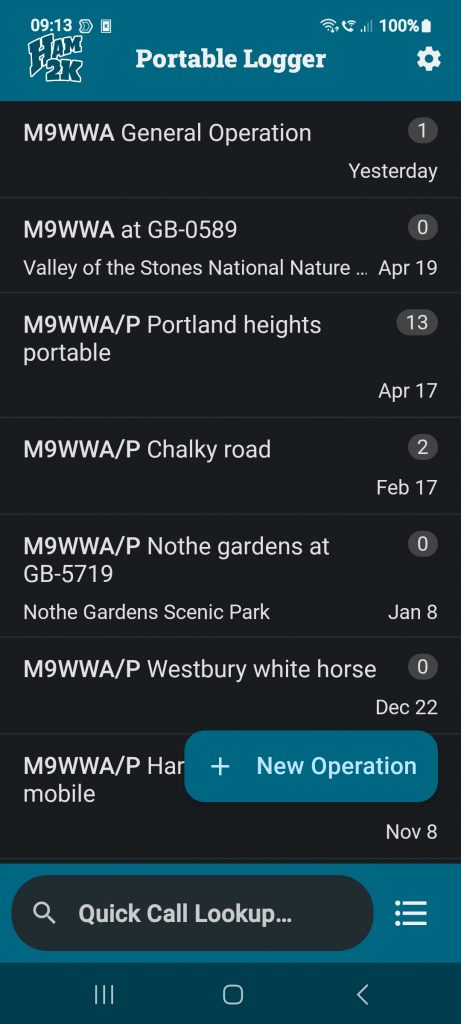
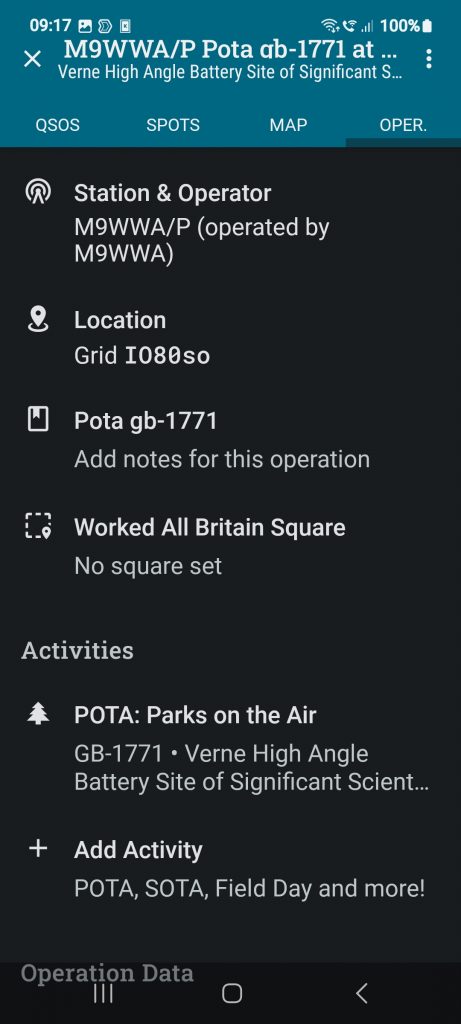
Start the Ham2k App and fill in some basic details. Callsign is always a good place to start. You will also need to find the “New Operation” button and fill in some further details of where you are operating from. Make sure you select your POTA Activity to the correct site reference code (See image)
Once your log operation is setup, go and click on the QSO tab on the top row. This will give you the QSO entry system as shown below:
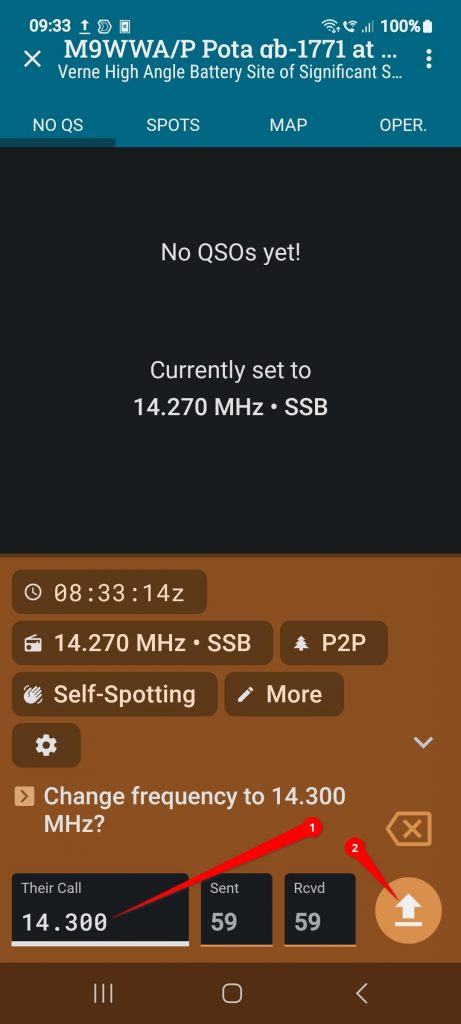
There are a lot of shortcuts in the HAM2K Polo app to make life easier for the operator. If you type in the Frequency you wish to operate on in the text field (1) and press the upload button (2) you can set the frequency of operation. You can of course tap on the Frequency above “Self Spotting” to then make changes. Many different ways to skin a cat as they say.
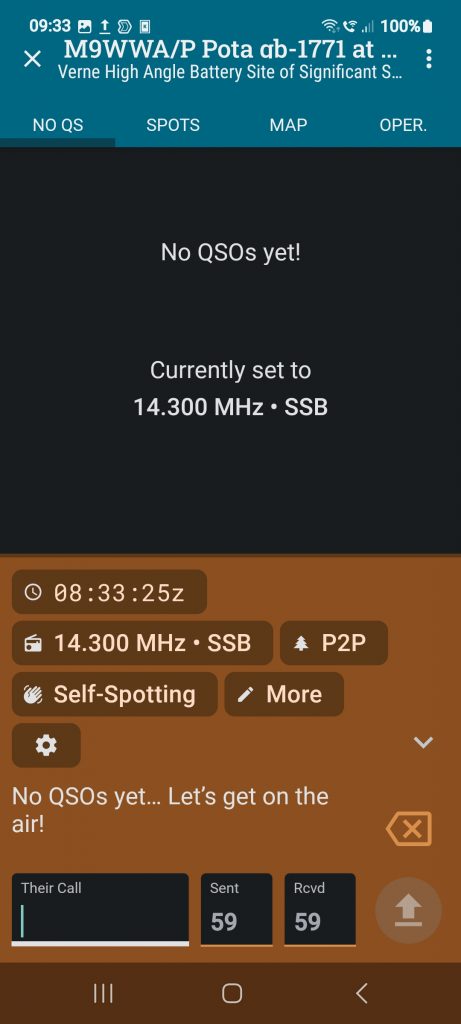
Simply highlight the text entry field (Their Call) and tap in the callsign of the station you are working (or vice versa) you can fill in the Sent and Received filds if you wish. After doing so, hit the button on the right (marked 2 in the image above)
This will now save the contact details in your log and you can view, if you have the QRZ Integration set up, the Gridsquare or station location in the Map tab.
Ham2K Polo is a very powerful logger, i do not just log POTA activities with mine, i also log everyday HF contacts as i can export to .ADI or send directly to my Wavelog Server.
This should be enough information for you to dive in further.
You will find some very useful manuals at https://polo.ham2k.com/docs/
You can find POTA information at https://docs.pota.app/
You can also leave a reply below, please use a callsign as part of your name if you register for an account, it really helps me to filter your message out from the spam 🙂












You must be logged in to post a comment.