
Parabolic

Getting started with Chrome:
Step 1.
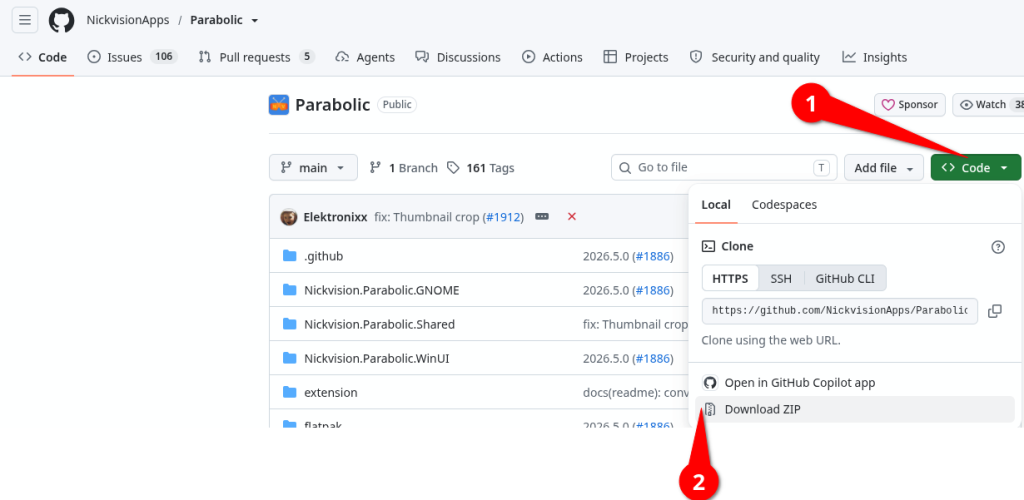
Go to the Github page for the project: https://github.com/NickvisionApps/Parabolic
Click the Green Code button (1)
Click Download ZIP (2)
Save the file to somewhere safe on your local drive.
Extract the .ZIP file, you want to make sure you Extract ALL of it, with paths!
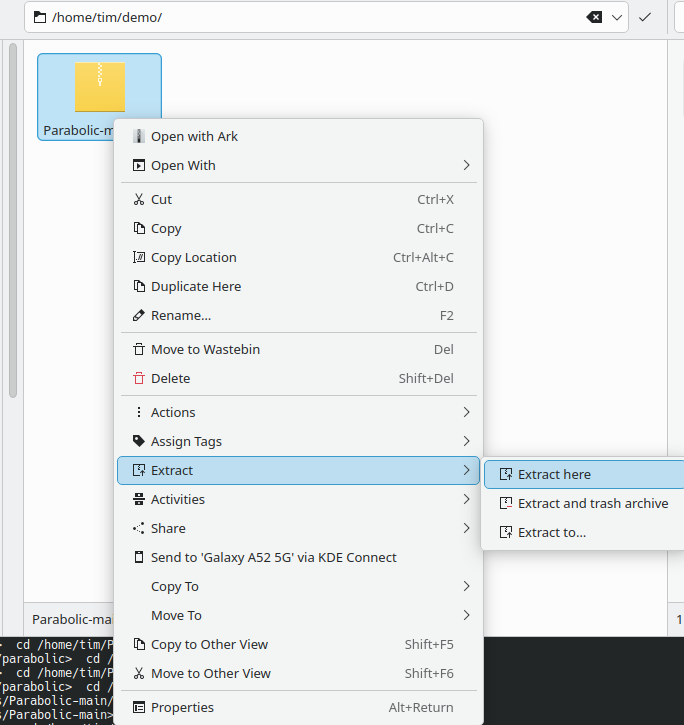
Windows users will see something a little bit different but the steps are the same.
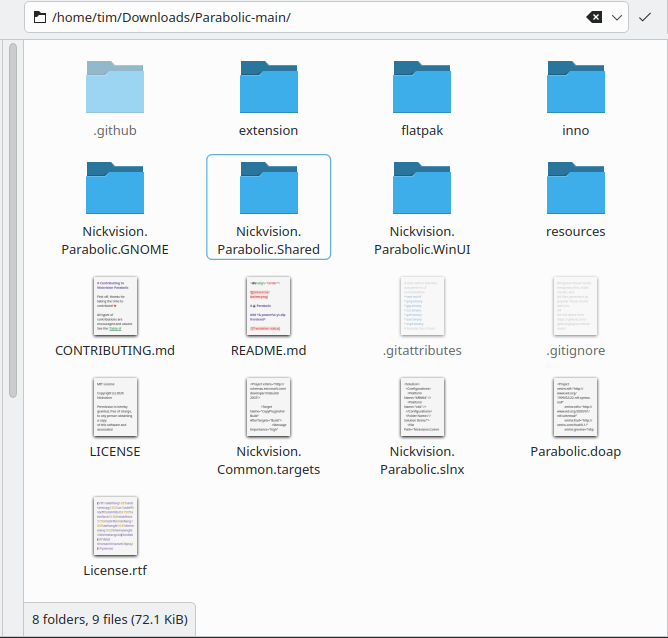
You will now have a fully Extracted archive of the Parabolic Archive.
It’s time to install the Extension (Chrome)
Open up Chrome Browser
In the URL section (Website Address) type in: chrome://extensions/ (1)
Ensure Developer Mode is switched on (2)
Click on the Load Unpacked (3)
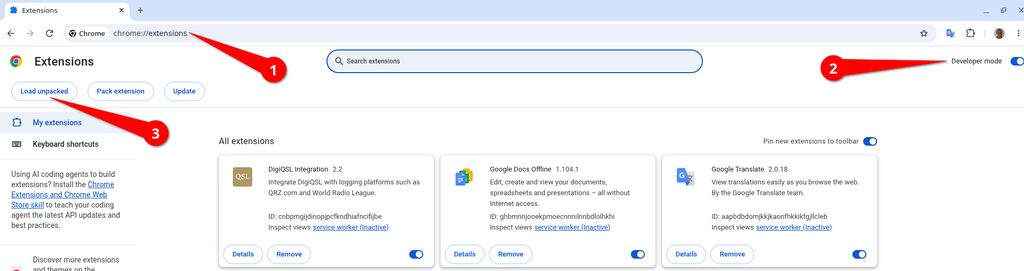
A file explorer window will open up.
Navigate to the Extracted archive and find the Extensions Folder (1)
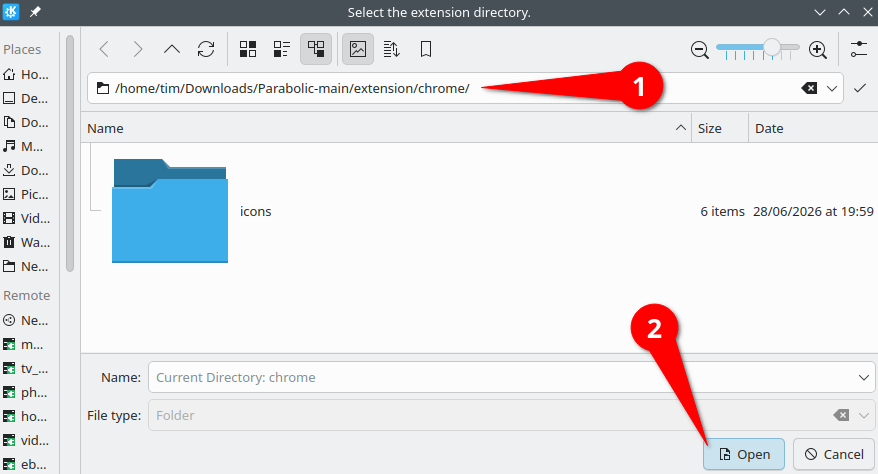
Now click on OPEN (2). This will install the extension into Chrome.
Note that you may not see anything except the Icons folder. This is correct!
You have now installed the Extension into Chrome.
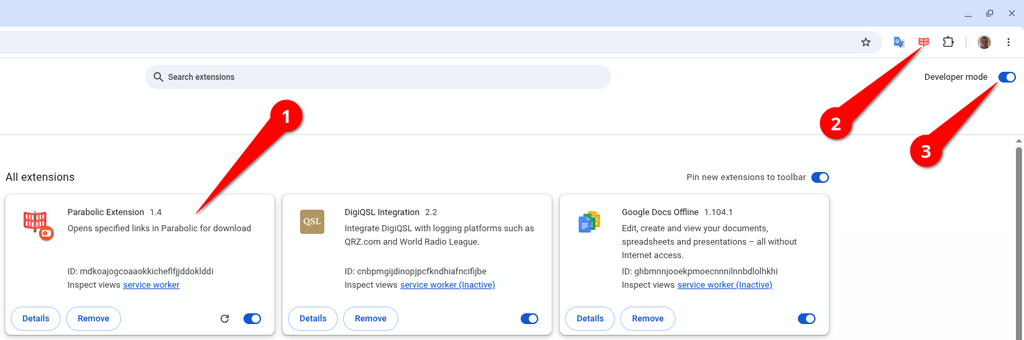
You can now see the Parabolic Extension plugin inside the list (1)
You will now have the Plugin icon at the top right of your bar (2)
Do not turn off the Developer Options (3)
You are now ready to use Parabolic!
Just a quick legal thing i would like to cover.
I use Parabolic to Download Videos from my YouTube channel. I do not condone or encourage using this software / plug / extension to Download copyrighted material.
If your system goes down or your external hard drive / NAS ends up with a fault condition and you lose some of your videos that you have uploaded to a video hosting service, this software makes life easy to get a copy of it back.
I will leave you to work out all the other options.
Open up Chrome
Go and visit your favourite YouTube channel (Not mine) (1)
Left click on the Parabolic icon (2)
A Download box will display the options
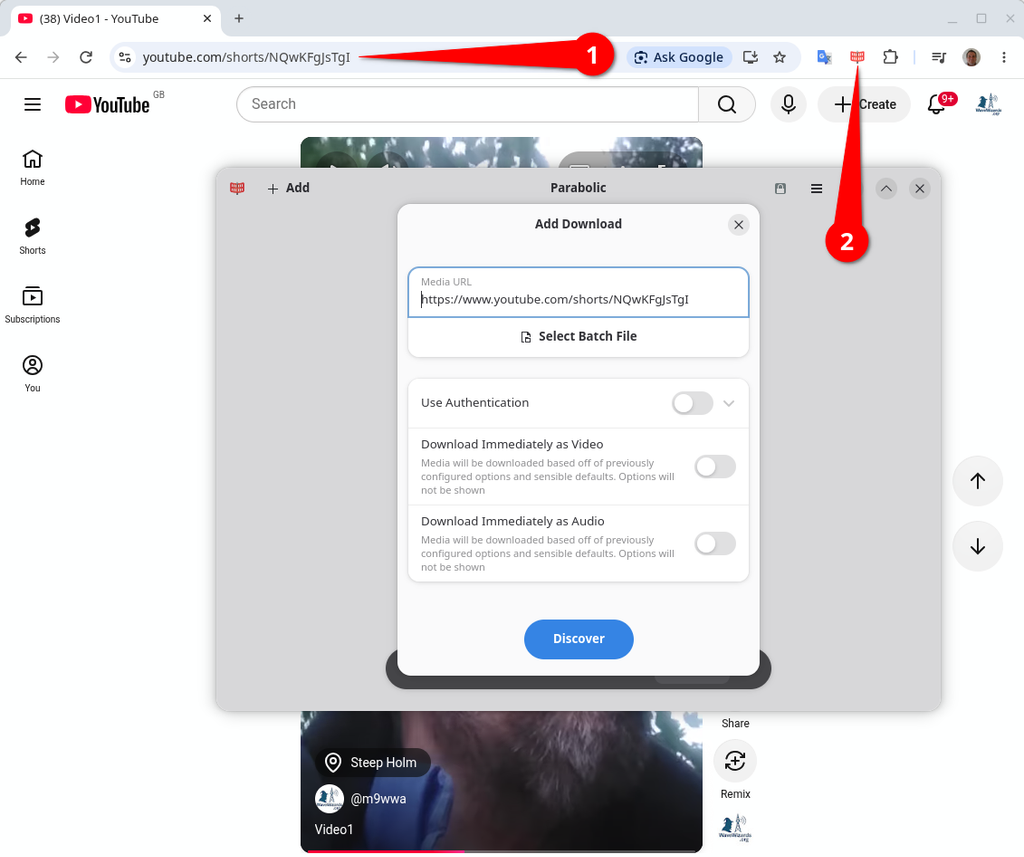
I may have mentioned that i run OpenSuse Linux on my development Laptop.
You can also install Parabolic via Discover / Zypper / Merlyn or your Distributions Package Manager. You can also defeat Adverts on YouTube by using the Brave Browser!
This gives you full control over what Adverts are displayed and avoids those stupid “You are using an Ad-Blocker” pop ups. I use Chrome to display adverts on monetised channels that i subscribe to. This means that the creator still gets revenue from watch time.
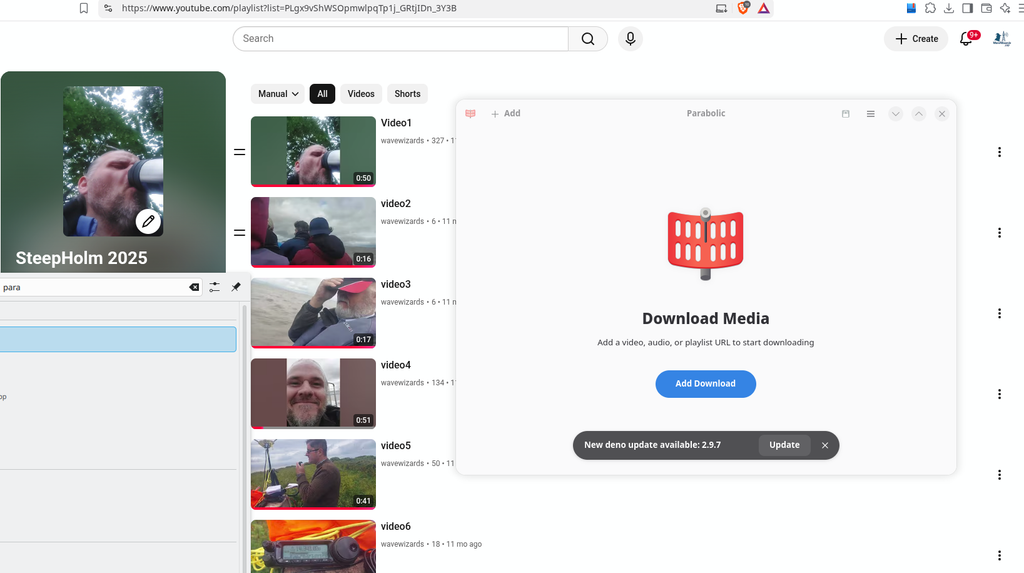
You can also Download Playlists (illustrated above)
Discover more from wavewizards.org
Subscribe to get the latest posts sent to your email.














You must be logged in to post a comment.